
Download Aging Tabs – Firefox tab manager, colour‑coding, free extension
Overview
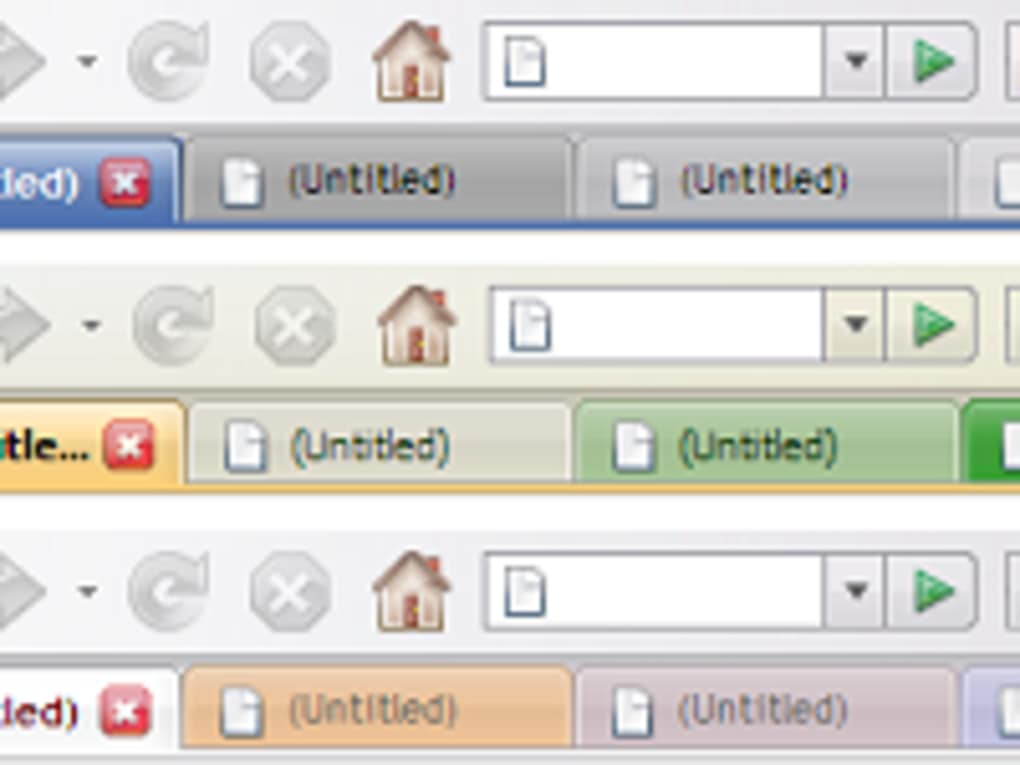
Firefox users love the flexibility of tabs, but as the number of open pages grows, it becomes harder to remember which tab has been open the longest or which ones have become stale. Aging Tabs is a lightweight, free extension that brings a visual timeline to your browsing session by changing the colour of each tab as time passes. The moment a tab is opened, it receives a fresh colour; after a user‑defined period—ranging from a few minutes to several hours—the colour gradually shifts to a pre‑selected “old” hue.
This simple colour‑gradient approach gives you an at‑a‑glance indication of tab age, helping you decide when to close or revisit a page. While the concept is not revolutionary, the implementation is surprisingly smooth, requiring no extra permissions beyond what Firefox already provides for tab management. The extension also supports custom colour palettes, so you can match the ageing gradient to your personal theme or accessibility needs.
Moreover, Aging Tabs can act as an indirect memory‑saver; by reminding you of long‑standing tabs, it nudges you to consolidate or close them, potentially reducing RAM usage caused by a flood of idle pages. Whether you are a power user juggling dozens of research tabs or a casual surfer who simply wants a cleaner tab bar, Aging Tabs adds an extra layer of organisation without cluttering the interface. Its minimalistic design respects Firefox’s native look while delivering functional insight that many users find surprisingly useful after the first few days of use.
Key Features
Aging Tabs packs a focused set of capabilities designed to improve tab visibility and browser efficiency. Below is a detailed rundown of what the extension offers, each item crafted to enhance the everyday browsing experience.
- Dynamic colour fading: Tabs transition smoothly from a “new” colour to an “old” colour based on a user‑defined time interval.
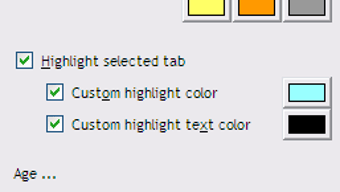
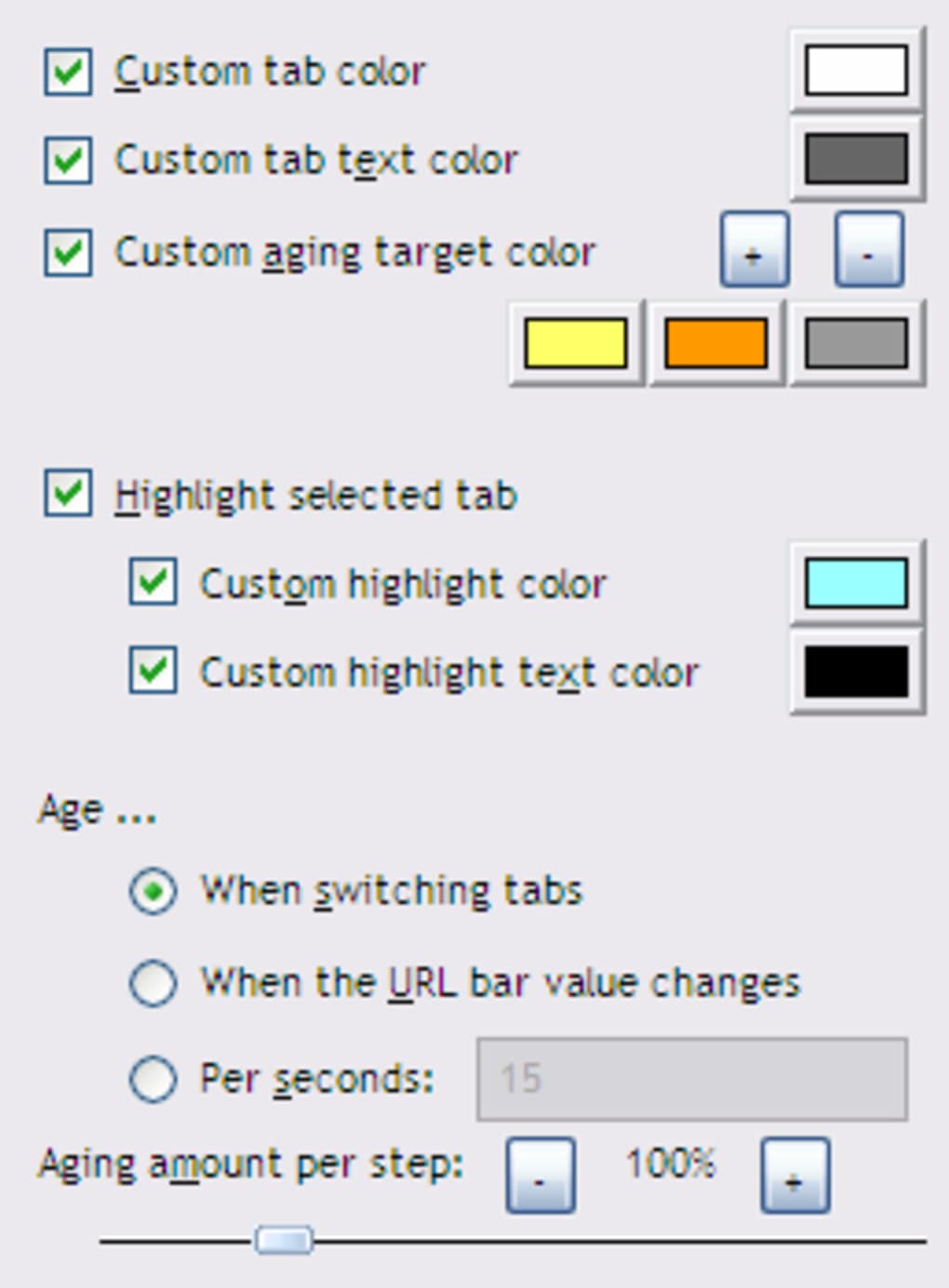
- Custom colour palettes: Choose any combination of start, mid and end colours, or use preset themes for light, dark, or high‑contrast modes.
- Per‑tab age indicator: Hovering over a tab reveals a tooltip with the exact time the tab has been open, down to minutes.
- Automatic reset on reload: Reopening a closed tab or refreshing a page restarts the colour cycle, treating it as a fresh tab.
- Low‑impact performance: The extension runs in the background with negligible CPU or memory overhead, ensuring Firefox remains fast.
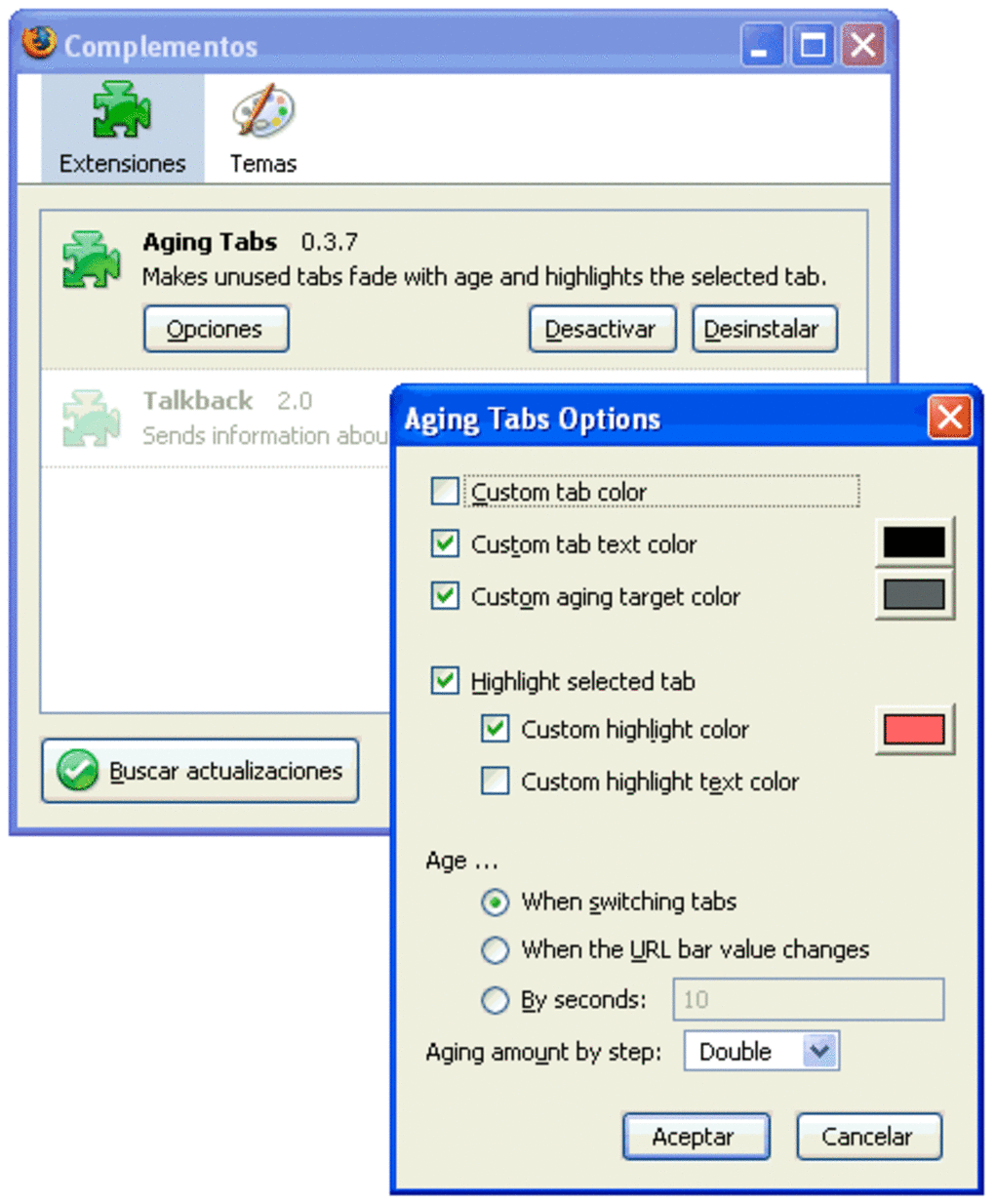
- Simple configuration panel: All settings are accessible from a single, clean options page inside Firefox’s Add‑ons Manager.
- Sync‑ready: Settings can be synced across devices using Firefox Sync, keeping your colour scheme consistent on every installation.
- Open‑source transparency: The code is hosted publicly, allowing users to audit or contribute improvements.
Installation & Usage Guide
Getting started with Aging Tabs is straightforward. Follow these step‑by‑step instructions to download, install, and customise the extension for optimal use.
- Download the extension: Visit the official Mozilla Add‑ons page for Aging Tabs and click the “Add to Firefox” button. The download is free and secured by Mozilla’s review process.
- Grant permissions: Firefox will prompt you to confirm the permissions required—primarily access to tab information. Click “Add” to approve.
- Initial setup: Once installed, a new icon appears in the toolbar. Click it and select “Options” to open the configuration panel.
- Define colour scheme: Choose a start colour (e.g., bright green) for newly opened tabs and an end colour (e.g., muted gray) for older tabs. Optionally, set a mid‑point colour for a smoother gradient.
- Set ageing interval: Decide how quickly the colour should transition—common choices are 30 minutes, 1 hour, or 2 hours. You can also specify a custom duration in minutes.
- Enable tooltip timestamps: Turn on the “Show age tooltip” option if you want exact open‑time data when hovering over a tab.
- Save and apply: Click “Save” to apply changes. Existing tabs will instantly update to reflect the new colour settings based on their current age.
- Regular use: As you browse, watch the tab bar gradually change. When a tab reaches the “old” colour, consider whether it still needs to stay open. Closing stale tabs can free up RAM and keep your workflow tidy.
The extension also supports Firefox Sync. If you use multiple devices, enable “Sync settings” in the options panel and your colour scheme and interval preferences will automatically propagate to other installations of Firefox where you have Aging Tabs enabled. Should you ever need to reset the extension, a “Restore defaults” button will revert all settings to the original configuration.
Compatibility, Pros & Cons
Aging Tabs is built specifically for the desktop version of Mozilla Firefox. It works on Windows 10/11, macOS 10.15 (Catalina) and later, as well as Linux distributions that support Firefox ESR or the standard release channel. The extension does not currently support Firefox for Android or iOS, as those platforms have a different extension API. For optimal performance, ensure you are running Firefox version 78 or newer; older versions may lack the required WebExtension APIs for colour manipulation.
Pros
- Visually intuitive method for tracking tab age.
- Fully customisable colour palettes to match any theme.
- Lightweight with negligible impact on browser speed.
- Tooltip timestamps provide precise age information.
- Sync‑compatible for consistent experience across devices.
- Free and open‑source, with regular updates from the developer.
Cons
- No support for mobile Firefox (Android/iOS) yet.
- Colour fading may be less noticeable for users with visual impairments if not configured properly.
- Relies on user discipline to close old tabs; the extension does not automate tab closure.
- Limited to colour‑based signalling; does not provide additional metrics like memory usage per tab.
Frequently Asked Questions
Can I use Aging Tabs on Firefox for Android?
No. The current WebExtension API for Android does not support the tab‑colouring functions used by Aging Tabs. A mobile‑compatible version may be released in the future.
How does Aging Tabs affect Firefox performance?
The extension is designed to be low‑impact. It only reads tab creation timestamps and updates CSS colours, which consumes minimal CPU and memory. Users typically notice no slowdown.
Can I set different colour schemes for different windows?
Currently, the colour scheme is applied globally across all Firefox windows. Future updates may introduce per‑window profiles.
Is there a way to export my settings?
Settings are stored in Firefox’s Sync system. By enabling Sync, your configuration is automatically backed up and can be imported on another device.
What happens to the colour when I reload a tab?
Reloading a tab resets its age counter, so the tab returns to the “new” colour as if it had just been opened.
Conclusion & Call to Action
Aging Tabs fills a subtle yet valuable niche in the Firefox ecosystem. By turning the invisible passage of time into a clear visual cue, it helps users maintain a cleaner workspace, reduces the temptation to keep forgotten tabs open, and can even contribute to lower memory consumption. While it does not replace more robust tab‑management tools, its simplicity and ease of use make it an excellent addition for anyone who wants a quick glance at tab longevity without leaving the browser. If you frequently end up with dozens of tabs and find yourself wondering “Did I open this yesterday?”—the answer is now literally colour‑coded.
Ready to give your Firefox tabs a fresh perspective? Download Aging Tabs today, customise the colours to match your workflow, and start noticing which tabs truly deserve a place in your browsing routine.
Pros: Intuitive visual feedback, highly customisable, lightweight.
Cons: No mobile support, limited to colour signals only.
Overall rating: 4/5 – a worthwhile free add‑on for power users.







